Issuing invoices in the Local Accommodation sector is an essential aspect of managing your business legally and efficiently and is simpler than it may seem. With the support of the digital tools we provide and clear step-by-step guidance, the process becomes simple and easy to navigate.
Income generated from the activity of furnished accommodation for tourists [CAE 55201 or 55204] is taxed under category B. To declare the income you must issue the guest an Invoice-Receipt (Recibo-verde) on the Portuguese Finances Portal.
Please see below how you can issue your invoices in just a few minutes:
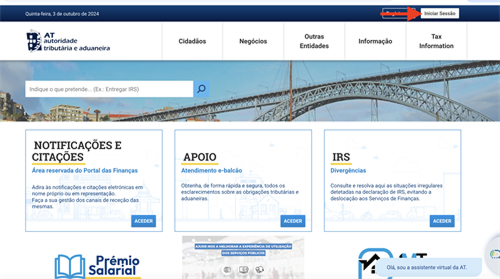
1. Access the Finances Portal and click on "Iniciar Sessão" (Start session/log in).
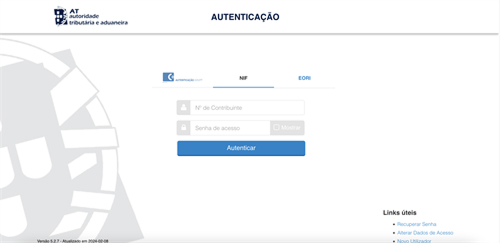
2. Log in with your NIF number and password or, alternatively, with your Chave Móvel Digital.
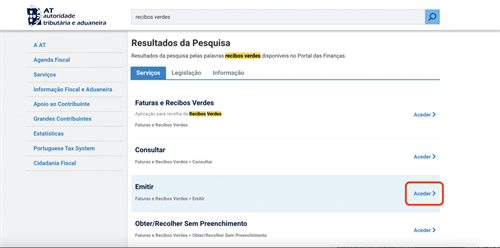
3. Do a search for the words "Recibos verdes" (Invoice-receipts).

4. In the section "Emitir faturas e recibos verdes" (Issue invoices or invoice-receipts), click "Aceder" (Access).
5. Click on "Fatura ou Fatura-Recibo" (invoices or invoice-receipts).

6. Select the date - it can be the date the service was provided or the day you received the rental amount from us. Then select "Fatura-Recibo".
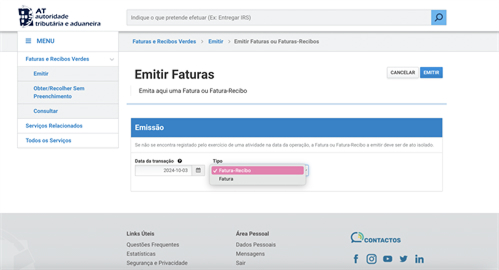
7. Here your details will be pre-filled. If you have more than one activity open, select the activity "ALOJAMENTO MOBILADO PARA TURISTAS - CAE 55201 or 55204" (Furnished accommodation for tourists).
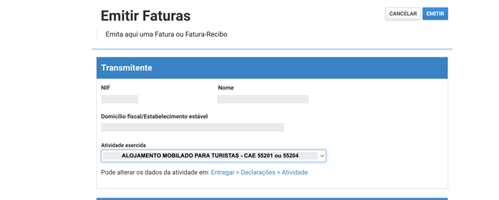
7. Here your details will be pre-filled. If you have more than one activity open, select the activity "ALOJAMENTO MOBILADO PARA TURISTAS - CAE 55201 or 55204" (Furnished accommodation for tourists).
8. Enter the NIF number and name of the guest or entity. If they are a non-Portuguese guest, select the country and fill in their passport or identity card number. This information is provided in the Excel bookings spreadsheet we share with you.
The "Morada de Cliente" (Customer Address) field is optional and the next field, "Morada de Entrega" (Delivery Address) does not apply, so you do not need to fill it in.

9. In the "Motivo de Emissão" (Reason for Issuance) section, select "Pagamento dos bens ou dos serviços" (Payment for goods or services).

10. In the next field click on "ADICIONAR" (Add).
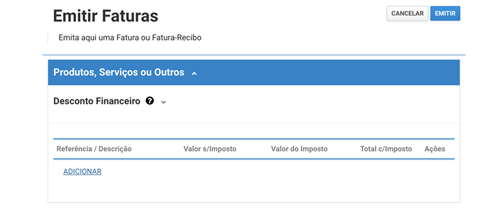
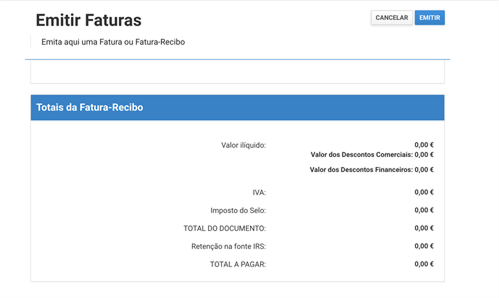
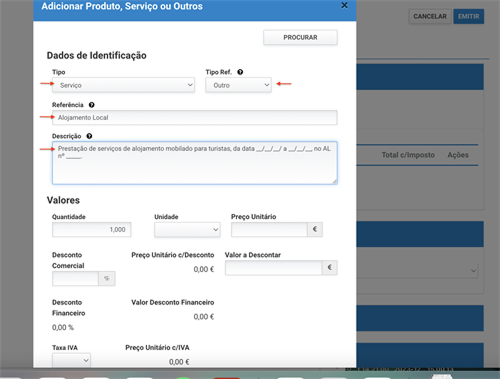
11. A new window will open where you must provide the details of the service provided, in this case, the booking details:
- In the "Tipo" (Type) field, select "Serviço" (Service);
- In the "Tipo Ref."(Ref Type) field, select "Outro" (Other);
- In the "Referência" (Reference) field, write "Alojamento Local" (Local Accommodation);
- In the "Descrição" (Description) field, write, for example, "Prestação de serviço de Alojamento Local, nas datas __/__/__ a __/__/__, no AL nº______." (Provision of Local Accommodation service, on the dates X at the AL unit number X).
12.In the "Valores" (Values) part:
- In "Quantidade" (Quantity) it will be pre-filled with 1, leave it unchanged;
- In "Unidade" (Unit) select "N/A - Não Aplicável" (Not Applicable);
- In "Preço Unitário" (Unit Price) enter the TOTAL value of the reservation - you will find this value in the Excel bookings spreadsheet, in the column colored in green, titled "Total Cost".
- In "Taxa IVA" (VAT Rate) select 0% and in the "Motivo de Isenção" (Reason for Exemption) field select "IVA - Regime de Isenção - artigo 53º do Código do IVA" (VAT - Exemption Regime - article 53 of the VAT Code). This regime applies to category B income, not exceeding € 14,500 per year.
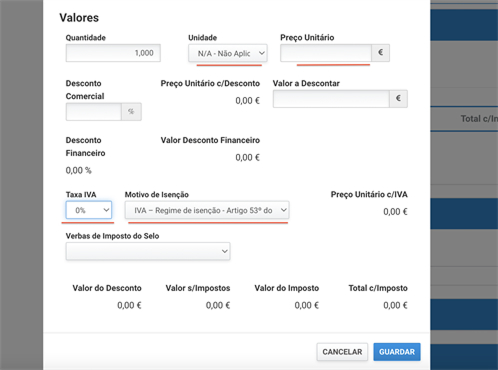
If you are not exempt, in the "VAT Rate" field, you must select 6%.
- In the remaining fields of this window you do not need to fill in anything, then click on "Guardar" (Save).
14. The next field, "Pagamento" (Payment), is optional, we recommend leaving it blank.

15. Finally, in "Totais da Fatura-Recibo" (Invoice Totals) a summary will appear. To proceed, click on "Emitir" (Issue) in the top right corner. A small window will open with a summary of the data entered. To validate and confirm the issuance of the invoice, click "Emitir". Once done, click "Imprimir" (Print) to download a copy of the invoice.